Why a Google listing is crucial for your business
Forget the old business directory. A Google business profile is now your digital business card, which appears exactly when potential customers search for your products or services in Google Search or Google Maps.
Your presence in the digital shop window
Whether you run a local craft business or have just launched your start-up — this presence is crucial. You build trust even before someone visits your website or enters your store. Important information such as opening hours, customer reviews and contact options is immediately available.
A look at the German corporate landscape shows the relevance: In 2025, around 2.04 million companies registered in the commercial register. At the same time, have already 68% of all German companies your own website, such as listflix.de shows. The Google listing is the perfect, free addition to stand out from the competition and make yourself easier to find.
The key to local customer acquisition
A well-maintained profile is a key tool for local customer acquisition. It ensures that you appear high up in local searches. Does anyone search for “hairdresser near me” or does someone need an “emergency heating service”? With a strong profile, there is a high probability that your company will be displayed prominently.
A well-maintained profile is a decisive lever for local search engine optimization and can make the difference between a full order book and missed opportunities.
Every update, every new photo and every answered review sends positive signals to Google and improves your ranking step by step. You can find out more about this in our comprehensive guide to local search engine optimization.
Preparation: What you need before the Google listing
Good preparation is half the battle. If you compile all important information and documents in advance, the process runs smoothly and you save valuable time.
Start with the master data: the exact, official company name, the correct business address And a reliable telephone number. Make sure that it is absolutely consistent. This data must be identical across the Internet, as Google regards uniformity as a positive signal for your local ranking.
Checklist to prepare your Google listing
Use this checklist to help you keep track of things. If you check off these items, you'll be well prepared.
Information/materialImportant informationExampleOfficial company nameExact spelling as in the commercial register or on official documents.” Müller & Schmidt GmbH” instead of “Müller Schmidt”Exact addressUniform information on street, house number, zip code and town.” Musterstraße 1, 12345 Musterstadt”Main phone numberA local landline number often looks more trustworthy than a mobile number. “+49 (0) 30 1234567"Business categoriesSelect the most specific main category and relevant minor categories.Main: “Italian Restaurant”, Next to: “Pizzeria”photos and videosHigh-resolution logo, images of outside, inside and products/services. Logo (1080x1080px), outdoor shot in daylightOpening hoursCorrect and current times, including possible breaks or special seasonal opening times.” Mon-Fr: 09:00 - 18:00”
With this information, your company's actual listing on Google will be noticeably easier and faster.
Step-by-step guide: List your company on Google
Now it's time to put it into practice. Creating a Google business profile is a clearly structured process. I'll guide you through every step of the way.
It all starts on the official Google Business Profile page. Sign in there with your Google account. If you don't already have one, it's best to create a separate account for your company.
1. Enter company name correctly
Do you wear exact Enter the name by which your company is officially known. Avoid adding keywords or locations here as this is against Google guidelines. The name must match the name on your company sign or in official documents.
Google immediately checks whether an entry already exists. If yes, you can apply for ownership. If not, continue creating.
2. Select a suitable company category
Now choose your primary business category. This information is critical because it tells Google what your company offers. Type in your industry (e.g. “tax advisor”, “bike shop”) and choose the most appropriate suggestion.
From practice: Be as specific as you can. Instead of “Store,” choose “Shoe Store.” Instead of “service provider,” use “building cleaning.” The more specific the category, the better Google can match you to relevant search queries. You can find more detailed tips in our guide on the topic Create a Google business profile.
After the main category, you can add further, secondary categories later to represent your entire range of services.
3. Define location or catchment area
Next, Google asks if you have a physical location that customers can visit (e.g. store, practice, office).
- Yes, there is a location: Please provide the full and correct business address. This is displayed on Google Maps and used for route planning.
- No, there is no location: This option is for service providers who travel to their customers (e.g. tradesmen, delivery services). Instead, define a catchment via postal codes, cities or a radius.
4. Save contact details and website
To complete the basic setup, enter your phone number and the address (URL) of your webpage on.
This information is not only important for customers, but also serves as a sign of trust for Google. Make sure that the information you provide here (name, address, telephone number) exactly matches that on your website (NAP consistency).
The basis of your profile is now created. The next crucial step is verification.
Verification: methods and typical problems
Without successful verification, your Google business profile remains invisible to customers. By taking this step, you prove to Google that your business actually exists and that you have the right to manage it. Only then will your entry be activated in the search and on maps.
Google offers various verification methods. Which option is available to you depends on your industry, location, and other factors.
Overview of common verification methods
- Postcard (standard method): Google sends a postcard with a five-digit code to your business address. Delivery usually takes time up to 14 working days.
- Phone or SMS: Some companies can receive the code directly via phone call or text message to their registered business number. This is the fastest method, but it is not always offered.
- email: The code is sent to an email address that runs on your company domain (e.g. info@ihre-firma.de).
- Video recording: Especially for service providers without a fixed location. You must provide evidence of your company's existence (e.g. company sign, branded vehicle, business documents) via video call or video recording.
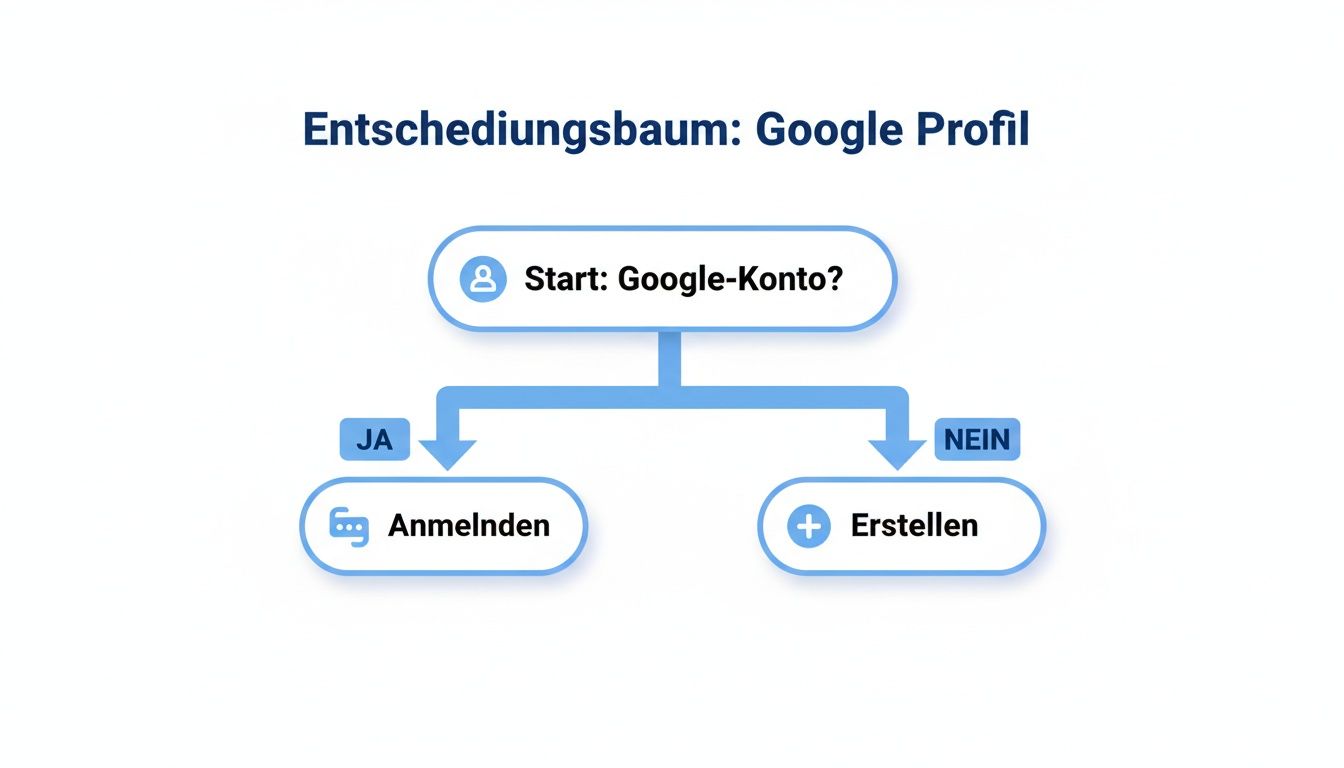
As the graph shows, a Google account is the basic requirement before the verification process can start.
What to do if verification fails?
The most common problem is that the postcard doesn't arrive. First check the address you entered for typos and make sure that your company name is clearly visible on the mailbox. After the deadline, you can request a new postcard.
Pro tip for video verification: Be prepared. Have documents such as a business license, tools with a company logo, or business cards ready. A quick swipe through your office or to the company vehicle can speed up the process.
If all attempts fail, all that remains is contact with Google Support. Document your previous steps and have all relevant information available. A verified profile is a central component of a good Ranking in local search results.
Dealing with duplicates and access issues
Administrative issues may arise even after verification. The most common are duplicate entries and loss of access to the profile. However, both can be solved.
Find and clean up duplicate entries
Duplicate profiles often occur unnoticed, for example as a result of automatic entries from Google or previous login attempts. This harms your visibility, as customer reviews and ranking signals are spread across multiple profiles.
Search specifically for your company name and address variations on Google Maps. If you find a duplicate, you have two options:
- Merge profiles: If the duplicate contains valuable reviews, contact Google Support to merge it.
- Remove entry: If the duplicate entry is empty or incorrect, report it as a “duplicate of another location” using the “Suggest a change” feature in Google Maps.
Restoring access to the company profile
If you've lost access (for example, because a former employee managed it), you can request ownership again. Search for your company on Google and click on the link “Owner of this business? ”. Follow the prompts
If the current owner isn't responding, you'll need to prove your eligibility to Google. Have official documents ready, such as an extract from the commercial register, your business registration or a current utility bill with company name and address.
After entry: How to optimize your profile
The verification is complete — now the real work starts. A well-maintained and active profile is the key to standing out from the competition and continuously acquiring new customers.
Use company description, photos and contributions
- Company description: Use the 750 characters to explain who you are and what makes you unique. Integrate important search terms, but write primarily for your customers.
- Photos and videos: Uploading new pictures regularly keeps your profile alive. Show off your team, your products, or give insights behind the scenes.
- contributions: Inform about offers, news, or events. Every post increases your visibility.
Don't think of your Google business profile as a one-time task, but as a dynamic marketing tool. A lively profile signals relevance to Google, which is rewarded with a better ranking.
Interact with reviews and questions
Customer reviews are a strong ranking factor. Respond to every feedback — both positive and negative. A professional response to criticism shows that you take customers seriously.
Use the Questions & Answers section proactively. Ask frequently asked questions yourself and answer them in detail. This helps customers and allows you to place relevant information and keywords to your Improve Google Maps ranking.
For start-ups in particular, an optimised profile is a decisive advantage. In the first half of 2025, around 1,500 new startups founded, like the Startbase Report on German Startups shows. In this dynamic environment, the Google company profile is a powerful tool for achieving maximum local reach with a minimum budget.
Summary: Your path to local visibility
You've learned how to list your company on Google, verify the listing and optimize the profile for maximum visibility. A fully completed and actively maintained profile is one of the most effective ways to attract new customers locally and strengthen your business sustainably.
If you don't want to tackle this process alone and are looking for an expert to get your Google profile to the top, we're here to help. We'll make sure you're found.